[ fcp://@fc.onlinehelp.com,%237600229/En/OnlineHelp/Web%20Help/LW2 ]Contents [ fcp://@fc.onlinehelp.com,%237600229/En/OnlineHelp/Web%20Help/LW31 ][Image:81203_43854_21.png][ fcp://@fc.onlinehelp.com,%237600229/En/OnlineHelp/Web%20Help/LW42 ][Image:81203_43840_19.png] [Marker][ fcp://@fc.onlinehelp.com,%237600229/En/OnlineHelp/Web%20Help/LW32#The reading pane ]The reading pane [ fcp://@fc.onlinehelp.com,%237600229/En/OnlineHelp/Web%20Help/LW32#Opening the reading pane ]Opening the reading pane --------------- [Marker]The reading pane When the reading [ fcp://@fc.onlinehelp.com,%237600229/En/OnlineHelp/Definitions/L2018 ]pane is open, it is displayed under or to the right of the main pane. The reading pane displays the contents of any object selected in the main pane. For example, a selected message or document opens in this pane. You can work with objects in the reading pane just as you do when they are opened in the main pane. [ fcp://@fc.onlinehelp.com,%237600229/En/OnlineHelp/Web%20Help/LW32#Top ]Top --------------- [Marker]Opening the reading pane To open the reading pane, click this button: [Image:892006_13851_0.png] This button is only visible if you have the navigation pane open. It [ fcp://@fc.onlinehelp.com,%237600229/En/OnlineHelp/Definitions/L2035 ]toggles through three states. To move the reading pane to the right of the main pane, click this button again. To close the reading pane, click this button a third time. [ fcp://@fc.onlinehelp.com,%237600229/En/OnlineHelp/Web%20Help/LW32#Top ]Top
   
F2027
 
 
Home  •  Help  •  M0  •  Practical Uses for FirstClass  •  101 Uses for FirstClass  •  F2027
81903_22607_2.pngSche dule school inspections

Minimum version:
FirstClass 8.3

Audience:
School administrators 

Experience
: 9203_22631_1.png
FirstClass applications used:
            8222006_91358_1.pngCalendars
9203_31709_1.png Summary
Want an easy way to notify everyone of upcoming school inspections, provide an electronic trail, and avoid the cost of paper copies? Use a FirstClass calendar to schedule the event. It can appear in the group calendar, as well as in any personal calendars you wish.
9203_31709_1.png Example
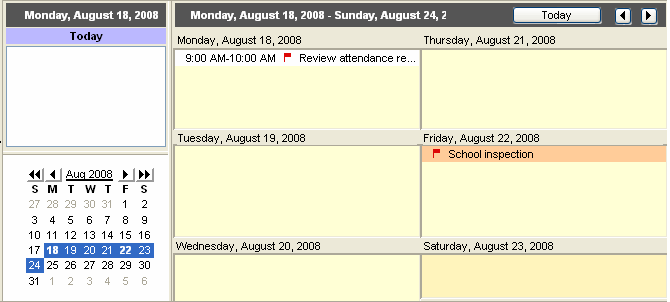
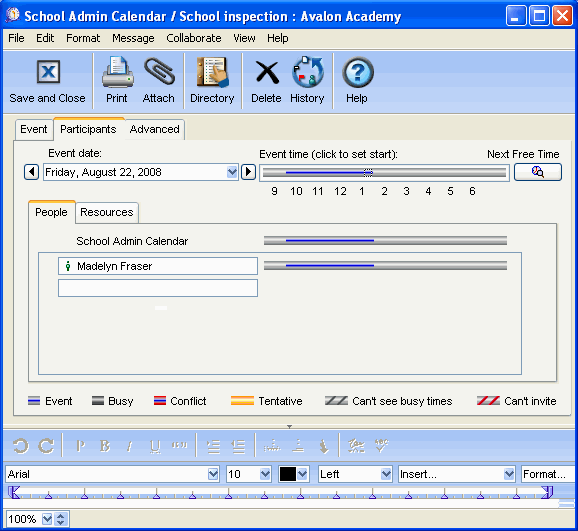
Avalon Academy's superintendents schedule school inspections twice a year. To make the scheduling easier, each school uses an administration calendar to schedule events such as this. The superintendent schedules the event in the administration calendar, and invites the principal on the Scheduling tab so the event appears on her personal calendar also. This gives the school plenty of notice as to when the inspection will occur.
This is the administration calendar where the inspections are scheduled.
8222006_91306_0.png
The superintendent uses the Scheduling tab to invite the principal.
8212006_42047_6.png
The principal receives the event in her calendar and confirms the inspection by clicking Accept.

8212006_41203_4.png
When the superintendent checks the Scheduling tab of the event, he sees an Accept icon beside the principal's name.

8212006_41607_5.png
81203_42935_18.pngTip
If the principal takes awhile to respond, the superintendent can check the History of the event to see if she has opened it.